Building an Extension
Extensions define the capabilities an agent can invoke. They run inside the browser extension, letting you interact with the DOM, call APIs, or manage data.
1. Create an Extension
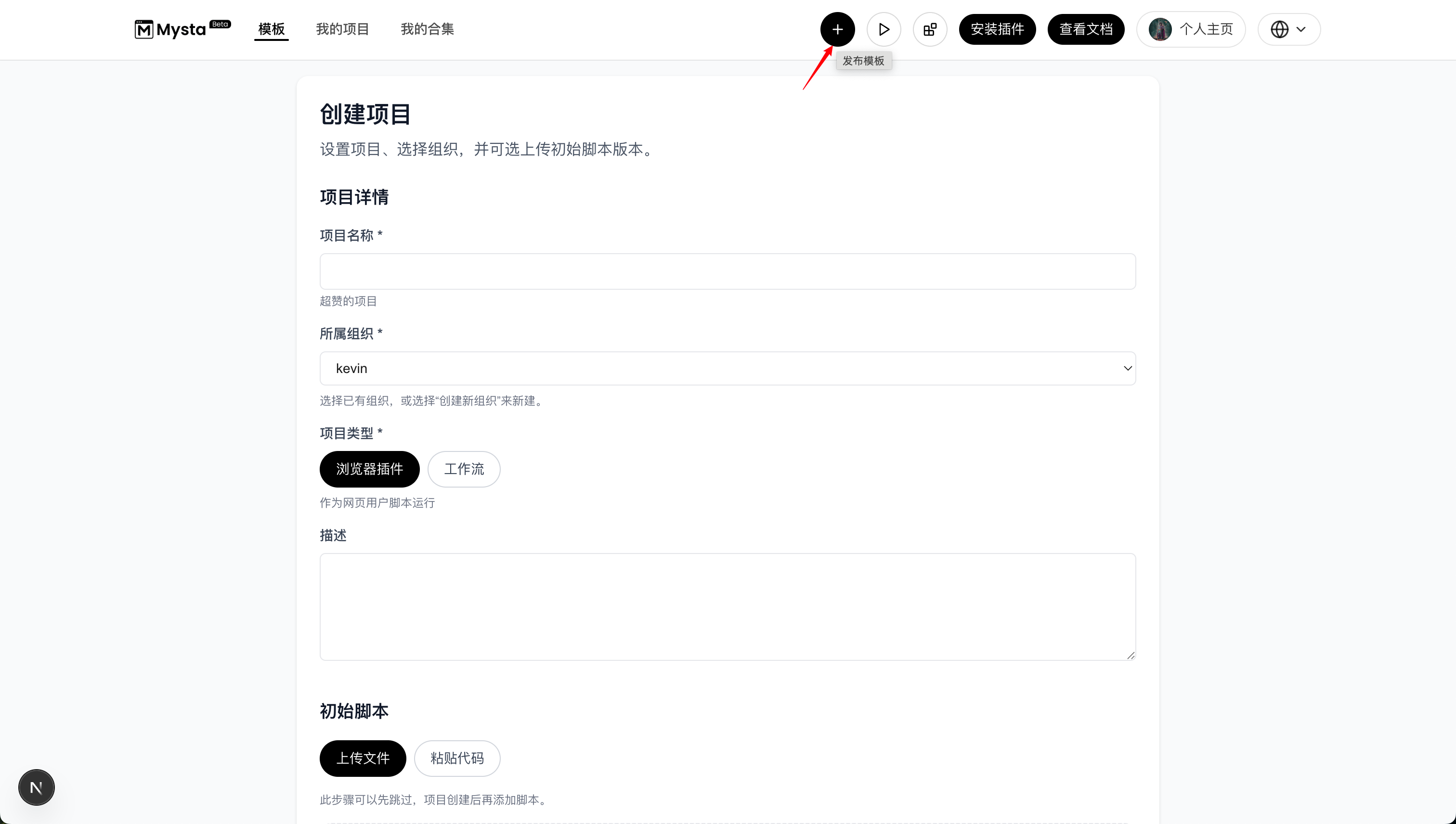
In the Mysta console, click Publish Template.
- Enter the project name.
- Select an existing organization or create a new one.
- Set the project type to Browser Extension.
- Provide a description.
- Configure the initial script or outline upcoming updates.
2. Build the Extension
Inside the Mysta browser extension, open Developer Mode and choose New Extension.
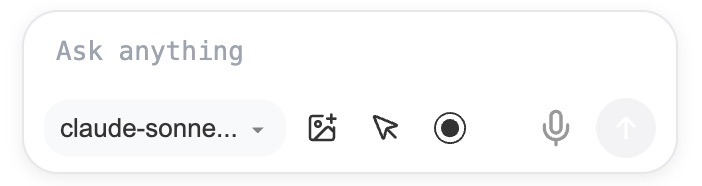
- Prompt input: type the instruction the agent should follow.
- Model selector: pick the model to execute the extension.
- Upload image: attach images as contextual clues.
- Select page elements: capture elements from the page as context.
- Record events: log interactive elements to replay actions.
- Voice input: dictate prompts by voice.
- Send: execute the conversation.
3. Test Locally
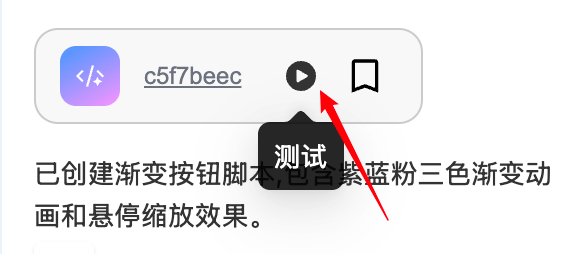
Click Test.
4. Save and Publish
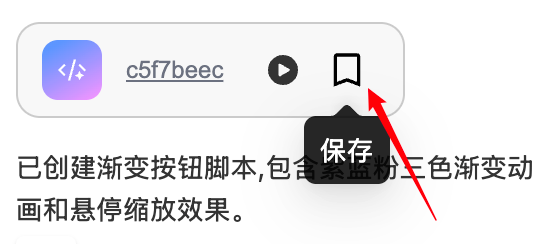
Click Save.
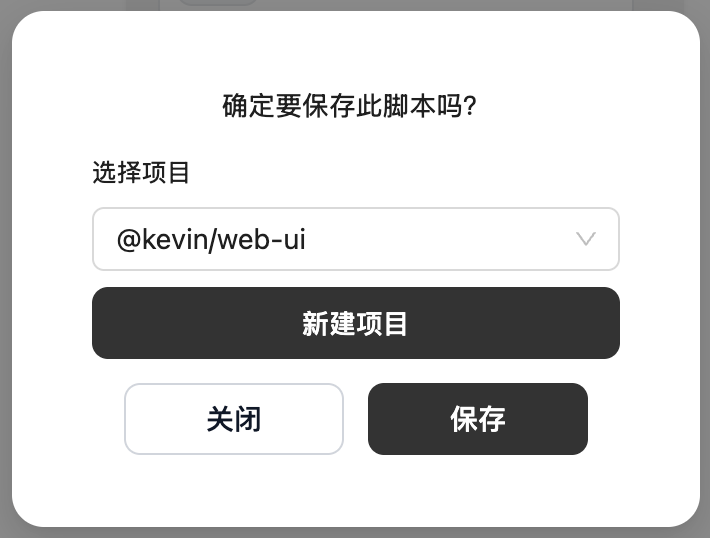
Choose an existing project or create a new one.
5. Manage the Extension
Use the Mysta console to manage everything under My Projects.
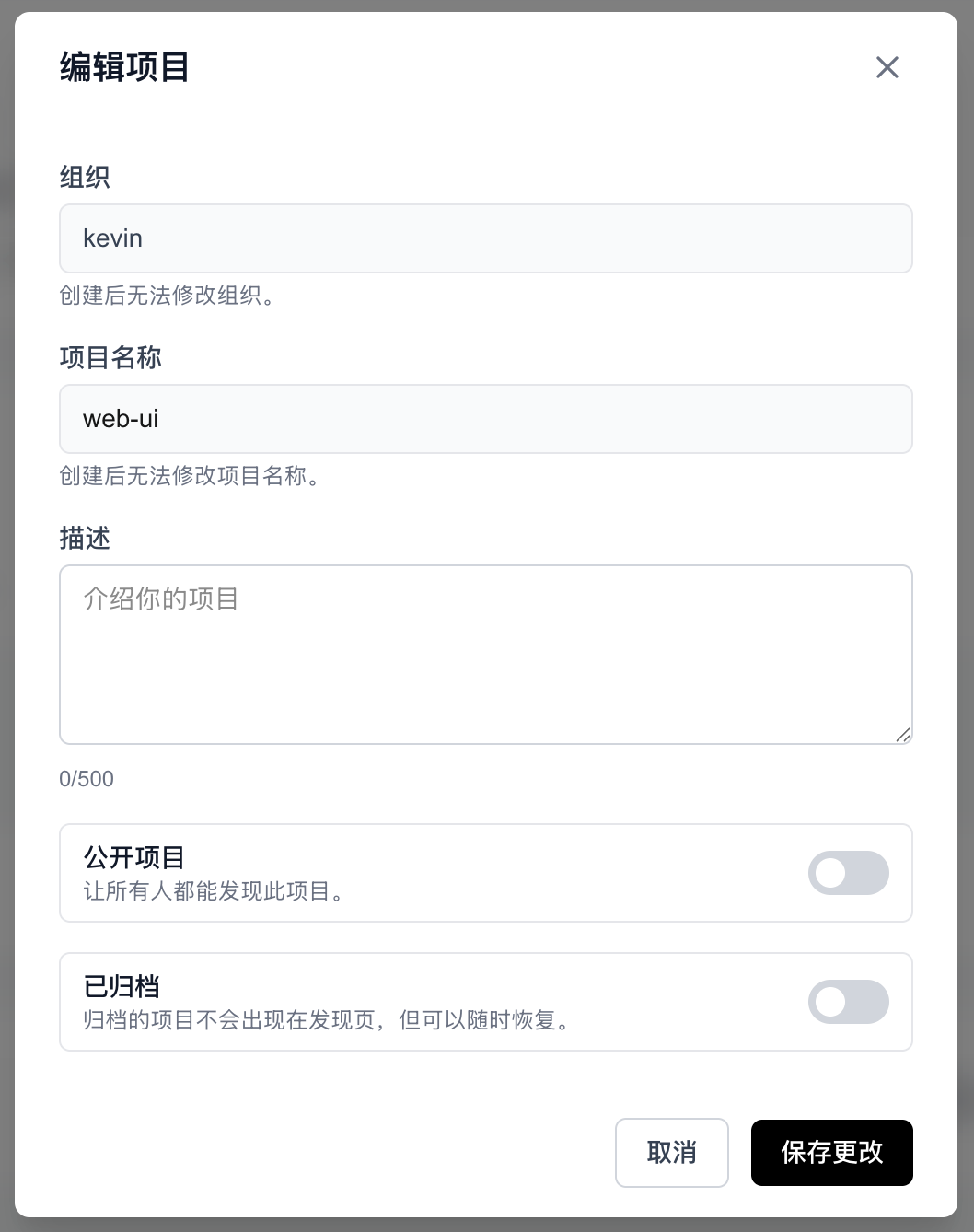
Edit project
- Description: update the project summary.
- Make public: allow everyone to discover the project. Once public, it cannot be reverted to private.
- Archive: archived projects disappear from the discovery page but remain recoverable.
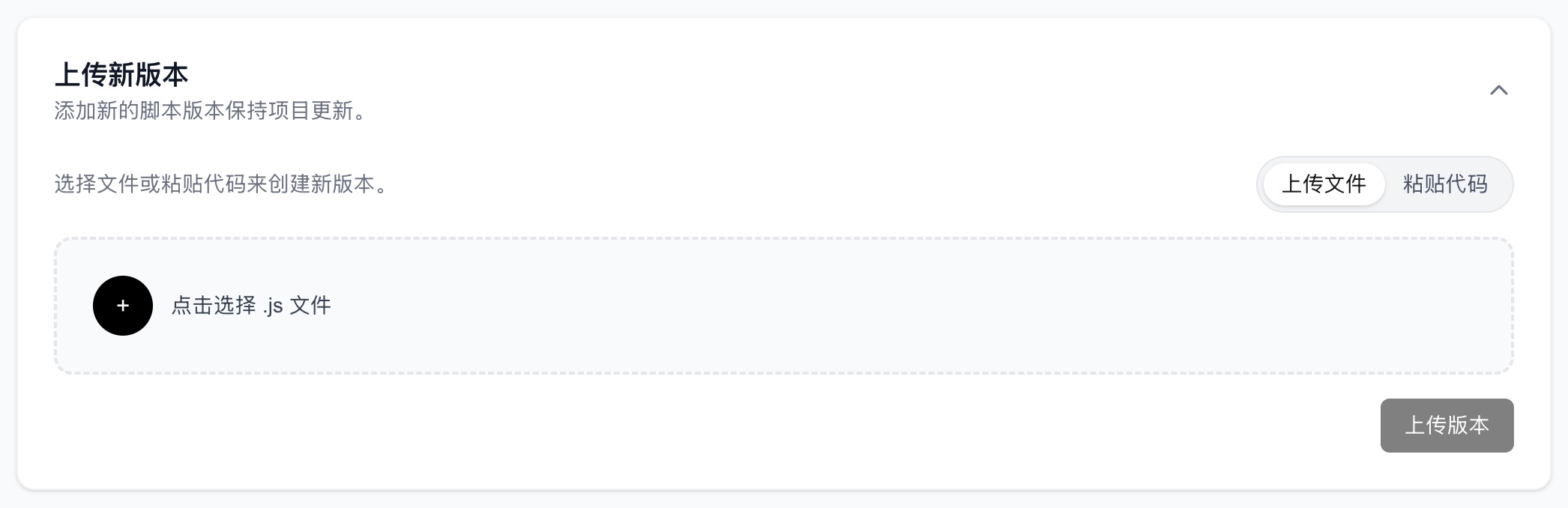
Upload a new version
Upload a file or paste code to create a new revision.
Version management
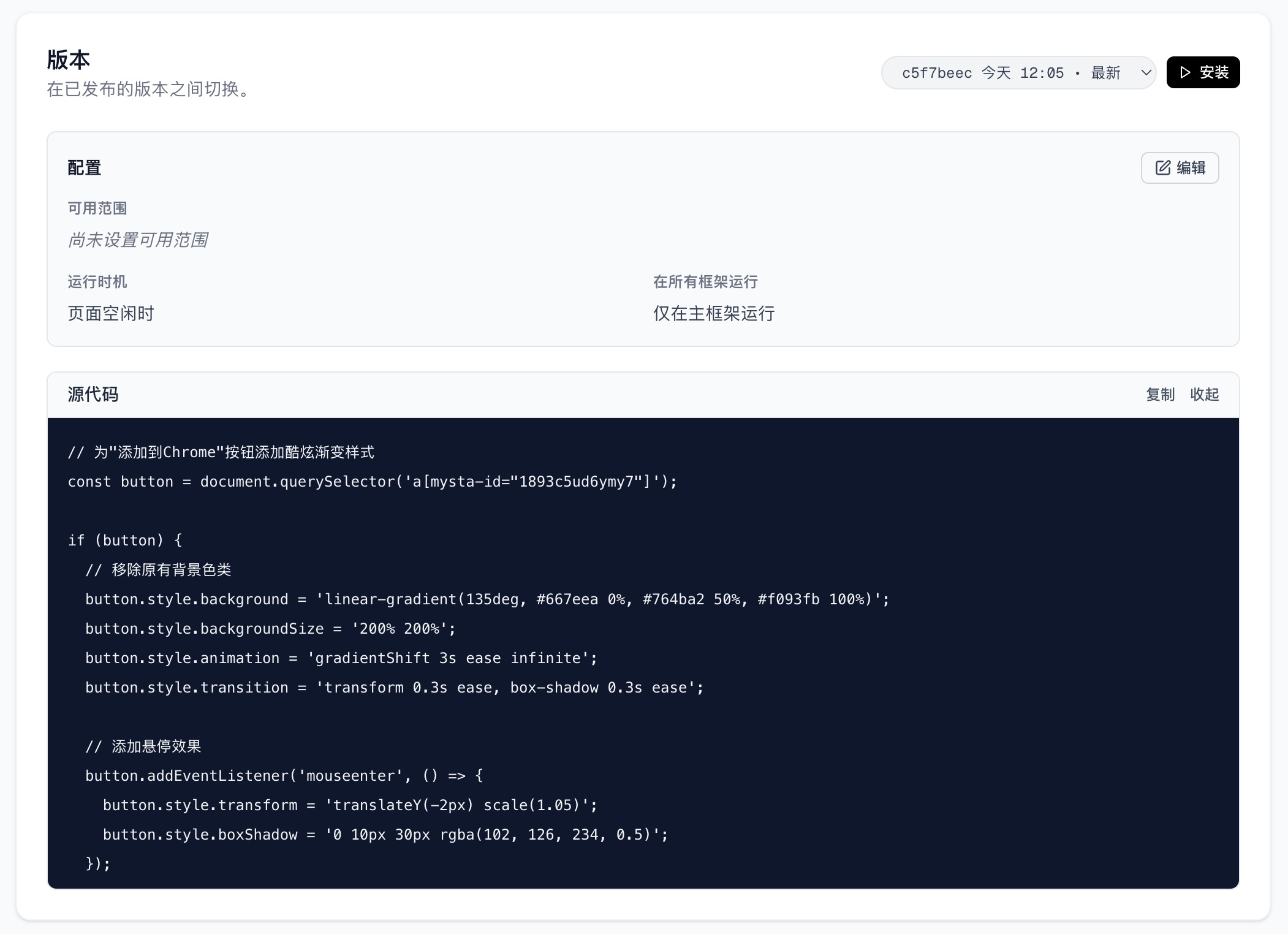
- Switch installations between published versions.
- Edit configuration: availability, when it runs, and whether it runs in every iframe.